| Feature | Description |
|---|---|
| Automatic Downgrade | Simplifies the process of reverting Fallout 4 to a previous version, compatible with mods like Fallout London |
| User-Friendly Interface | Easy to use, guiding players through each step of the downgrading process |
| Comprehensive Support | Supports all necessary files and updates required to run older game versions smoothly |
| Compatibility Assurance | Ensures full compatibility with Fallout London and other popular mods |
| Backup Options | Provides options to backup current game files to prevent data loss during the downgrading process |
The Fallout London Downgrader is an invaluable tool for any Fallout 4 player looking to experience mods that require an older version of the game. By following this guide, you can easily revert your game, ensuring compatibility and stability for a seamless modding experience. Enjoy the enriched world of Fallout London and other great mods without any compatibility issues.
Download & Install Fallout London Downgrader
Welcome to the ultimate guide on how to download and install the Fallout London Downgrader. This detailed guide will walk you through each step to ensure you can enjoy Fallout London without any compatibility issues. Follow these instructions carefully to downgrade your game version and install the mod seamlessly.
Preparation for Fallout London Downgrader
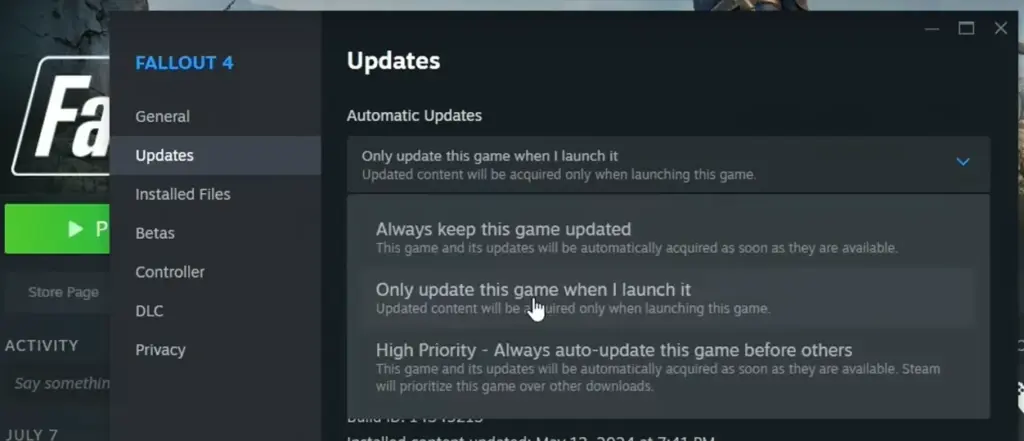
Disable Auto Updates on Steam:
- Open Steam.
- Go to your Library.
- Right-click on Fallout 4 and select ‘Properties’.
- Click on the ‘Updates’ tab.
- Set automatic updates to “Only update this game when I launch it.”
Disable Mods:
- If you’re not using Mod Organizer 2, disable all your mods to ensure a clean downgrade.
- If using Vortex, switch to a vanilla profile. To do this, open Vortex, go to the ‘Profiles’ tab, and select a vanilla profile or create a new one.

Download Fallout London Downgrader
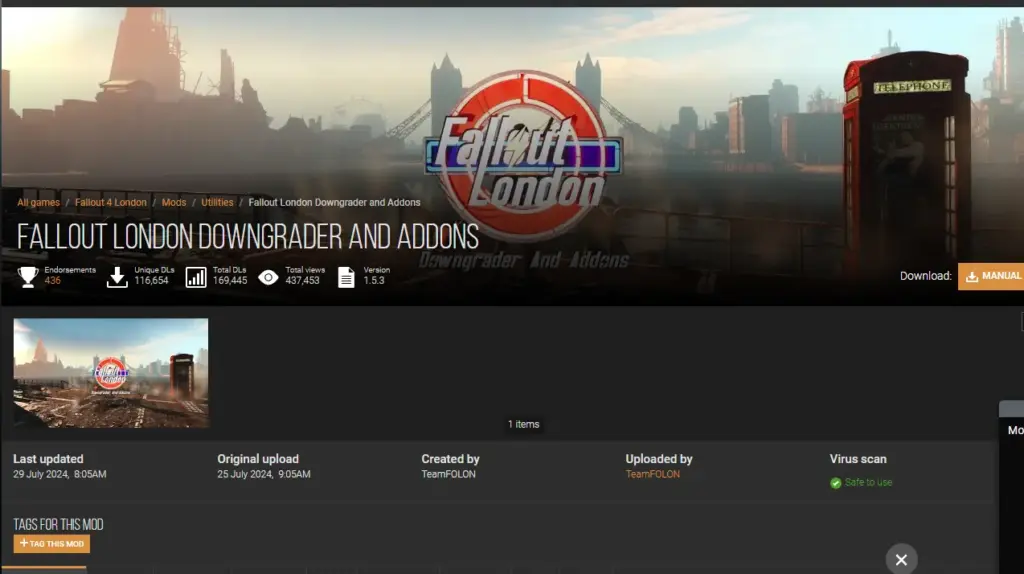
Visit Nexus Mods:
- Open your web browser and go to Nexus Mods.
- Use the search bar to find “Fallout London Downgrader.”
- Navigate to the downgrader tool page.
Disable Antivirus (if necessary):
- Some antivirus programs might flag the downgrader as a false positive.
- If you’re using antivirus software like Avast, disable it temporarily by going to its settings and choosing to disable it for an hour.
Download the Fallout London Downgrader:
- Click on the “Files” tab on the downgrader tool page.
- Select the latest version of the downgrader and choose “Manual Download.”
- Follow the prompts to download the file to your computer.
Install Fallout London Downgrader
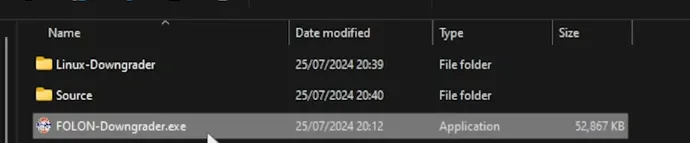
Run the Fallout London Downgrader:
- Locate the downloaded downgrader file (usually an executable file).
- Right-click on the file and select “Run as administrator.”
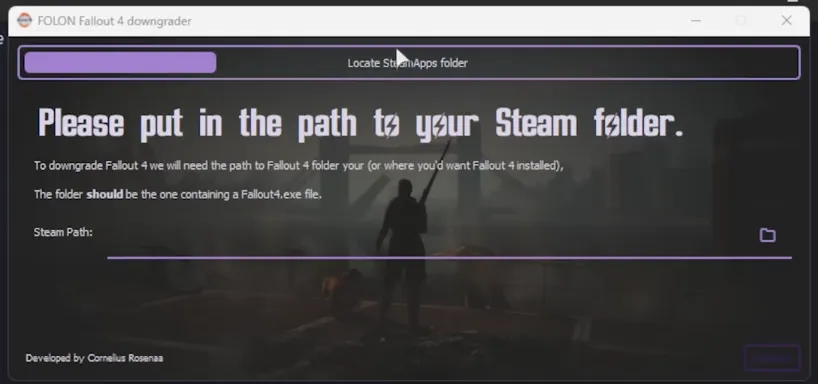
Select Game Folder:
- When prompted, navigate to your Fallout 4 installation directory. This is typically found at
C:\Program Files\Steam\steamapps\common\Fallout 4. - Alternatively, find the installation directory by going to Steam, right-clicking on Fallout 4, selecting ‘Properties’, going to the ‘Local Files’ tab, and clicking ‘Browse Local Files.’
Log into Steam:
- The downgrader will prompt you to enter your Steam login credentials. This is necessary to download the required files directly from Steam.
- Enter your Steam username and password, and follow the on-screen instructions.
- If you are concerned about security, consider changing your password after completing the process.
Use Steam Console Commands (Optional):
- If you prefer not to enter your Steam credentials, you can manually input commands in the Steam console.
- Open the Steam console by typing
steam://open/consolein your browser’s address bar. - Copy and paste the provided Depot download commands one by one into the console to download the necessary files.
Replace Game Files After Downgrading
Find the Depot Files:
- Navigate to
Steam\steamapps\contentto locate the downloaded Depot files. The folders will be named with numbers corresponding to the Depots downloaded.
Move Files to Fallout 4 Directory:
- Open the folder for each downloaded Depot.
- Copy all the files inside and paste them into your main Fallout 4 installation directory (
C:\Program Files\Steam\steamapps\common\Fallout 4). - Replace any existing files when prompted.
Set Files to Read-Only:
- To prevent Steam from updating the game, navigate to the
steamappsfolder, findappmanifest_377160.acf, right-click, select properties, and set it to read-only.

Troubleshooting Common Issues
What is Fallout London Downgrader?
The Fallout London Downgrader is a tool developed to assist players in reverting their Fallout 4 game to an earlier version. This is particularly useful for players who want to use mods that require an older version of the game, such as the expansive Fallout London mod. The downgrader simplifies the process, allowing players to enjoy their favorite mods without running into compatibility issues with the latest updates of Fallout 4.
Why Use the Fallout London Downgrader?
- Mod Compatibility: Many popular mods, including Fallout London, are not compatible with the latest version of Fallout 4. Downgrading ensures these mods function correctly.
- Stable Performance: Older versions of the game may offer more stability when running multiple mods.
- Community Support: Utilizing the downgrader aligns your game version with the majority of the modding community, facilitating easier troubleshooting and support.
How to Use the Fallout London Downgrader
To use the Fallout London Downgrader, you need to download it through the provided link. This link also includes a comprehensive guide to help you download it for free.